Learning how to use UltraViewer takes about five minutes. Both people open the app, one shares an ID and password, and the other connects. This guide covers each step from both sides, plus chat, file sharing, several computers and a safe way to end a session.
For the basics and system needs, see our UltraViewer overview. If the app is not on your PC yet, start on the download page.
Before You Start
Check three things first. That way, the first session runs without surprises.
- Both PCs run Windows. UltraViewer has no Mac, Android or iPhone version.
- Both PCs have the app open. The helper and the partner each need it running.
- Both PCs are online. A steady broadband or 4G hotspot works well.
How to Use UltraViewer to Get Help (Partner Side)
You are the partner when someone else will fix or show something on your PC. Here is what you do:
- Open UltraViewer from the Start menu or the desktop icon.
- Wait a few seconds until the status bar says Ready to connect.
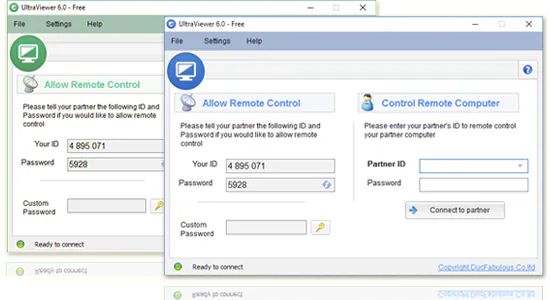
- Look at the Allow Remote Control box on the left. It shows Your ID and Password.
- Read both values to the helper over the phone, or send them in a private message.
- Keep the app open and watch the screen while they work.
Remember, you stay in charge. If anything looks wrong, move your own mouse or close UltraViewer. The developer's FAQ is clear on this point. Once you close the app, the other person can no longer control your PC.
How to Use UltraViewer to Give Help (Helper Side)
You are the helper when you control the other computer. Follow these steps:
- Open UltraViewer on your own PC.
- In the Control Remote Computer box, type the partner's ID in Partner ID.
- Type their password in the Password field.
- Click Connect to partner.
- A new window opens with the partner's desktop. Now you can use your mouse and keyboard on their PC.
Before you change anything, tell the partner what you plan to do. As a result, they will not panic when the mouse moves by itself.
Chat While You Work
The chat window keeps both sides in touch. Press F1 to open or hide it; the developer also lets you pick your own hotkey in the settings. Typed messages are handy for passwords of Wi-Fi networks, links and short notes. In addition, they leave a record of what you did.
Send and Receive Files
File sharing lives inside the chat window. Open the chat, choose the file option and pick a file from your PC. On the other side, the partner sees the transfer and decides where it goes. Paid plans list limits of 2 GB, 4 GB or 8 GB per file, while the developer does not state a limit for the free version. So for very large files, a cloud link is often faster.
Control or Share With Several Computers
UltraViewer can also work with more than one PC. For example, a trainer can share one screen with a few students at once. Likewise, a technician can open sessions to several machines in a lab. Keep in mind that each extra session needs bandwidth, so a slow line may lag.
How to Use UltraViewer Without Risk
Remote tools are useful, but they also attract scammers. Fake bank or courier "agents" sometimes ask people in India to install such apps. Then they ask the victim to open UPI or net banking while they watch.
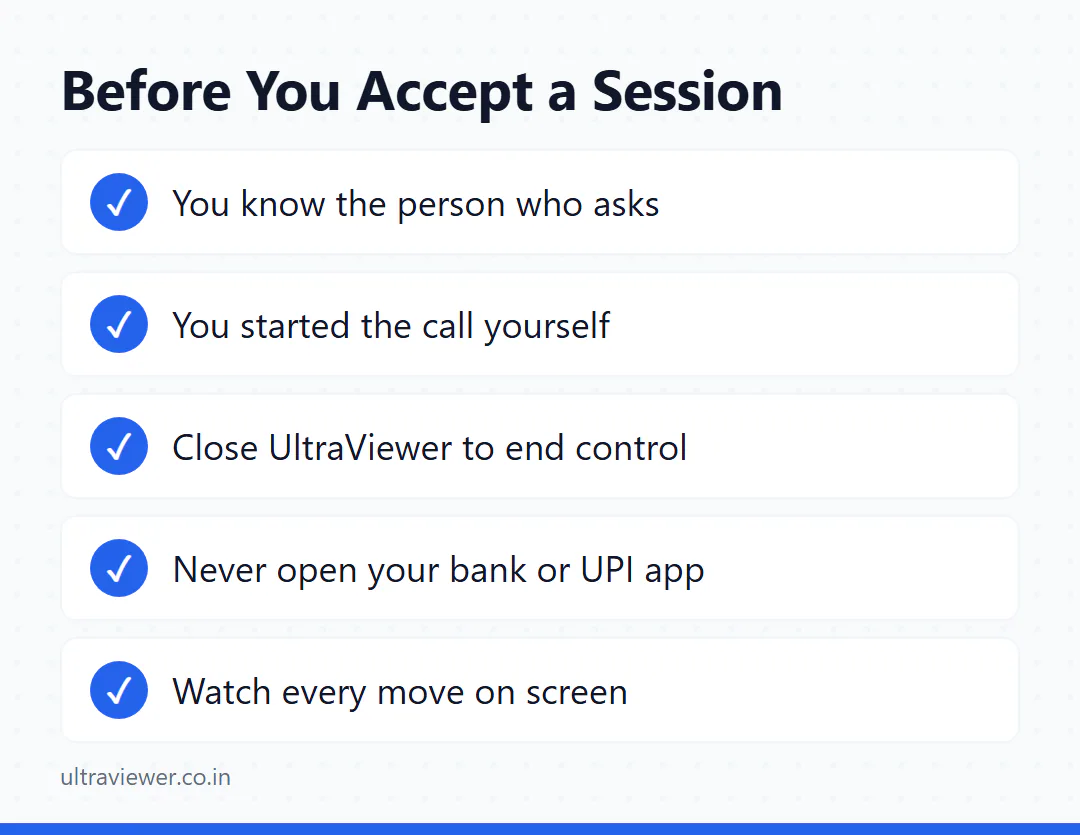
Keep these rules in mind every time:
- Share your ID and password only with people you know and only when you asked for help first.
- Never open banking or UPI apps during a session with anyone.
- Watch the screen the whole time. If the helper does something you did not agree to, close the app.
- Close UltraViewer after each session so nobody can reconnect.
If you think a caller cheated you, call the cyber crime helpline 1930 or report it at cybercrime.gov.in at once.
End the Session the Right Way
Either side can end a session. The helper can close the remote window. Meanwhile, the partner can close the app. That stops all control. Afterwards, save any open files on the partner PC. Then check the app list for anything new that nobody agreed to.
How to Use UltraViewer for Teaching
Teachers and tutors use UltraViewer in a different way. First, the tutor shares their own ID so students can watch a demo. Next, the tutor connects to a student's PC to check their work. As a result, practical topics such as Excel, Tally or coding become easier to explain.
Here are a few tips for online classes:
- Keep sessions short. Ten-minute blocks hold attention better than one long hour.
- Use the chat window to paste formulas, links or commands.
- Ask before you click. Let the student do each step, and step in only when they get stuck.
How to Use UltraViewer for Family Tech Support
Helping parents or grandparents is one of the most common uses in India. For instance, you can set up a printer or update Windows from far away. To make it easy for them:
- Install UltraViewer for them once, and pin it to the taskbar.
- Write "Open the blue screen icon and read me the two numbers" on a sticky note.
- During the call, explain each step in simple words.
- At the end, ask them to close the app.
Good Habits for Every Session
A few habits make each session faster and calmer. First, agree on a time, so the partner is at the PC. Second, ask them to close personal files and chats before you connect. Third, keep a short note of what you changed. That way, you can undo it later if needed.
Common Problems While Using UltraViewer
- "Wrong password" message: a single wrong digit is the usual cause, so ask the partner to read both values again.
- Stuck on "Getting my ID": check the internet, then restart the app. Office firewalls may block it, so test on a mobile hotspot.
- The remote screen is blurry or slow: close video and downloads on both sides, and move closer to the Wi-Fi router.
- Chat does not open: press F1, or check the chat hotkey in the settings.
Wondering how it compares with other tools? Read our UltraViewer vs AnyDesk guide.
FAQs
How do I use UltraViewer for the first time?
Install it on both PCs, share the partner ID and password, then click Connect to partner on the helper's PC.
Can I use UltraViewer without a password?
No. A normal session always needs the partner's ID and password, so nobody can connect without them.
How do I use UltraViewer chat?
Press F1 during a session to open or hide the chat window. You can change the hotkey in the settings.
How do I stop someone from using UltraViewer on my PC?
Close UltraViewer. After that, the other person can no longer control your computer.
Can I use UltraViewer on a phone?
No. The developer only makes a Windows version, so both sides need a Windows PC.